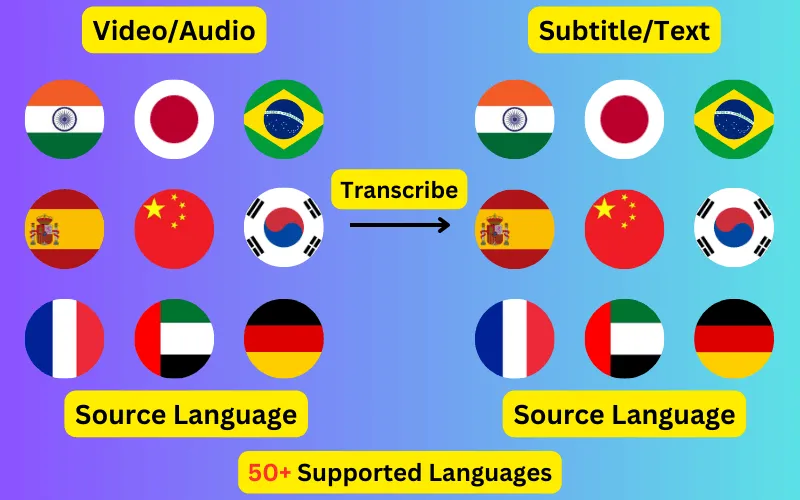
Transcribe video to text automatically

Create subtitles and text automatically with AI in 3 minutes

  • Transcribe audio/video to subtitles or text.
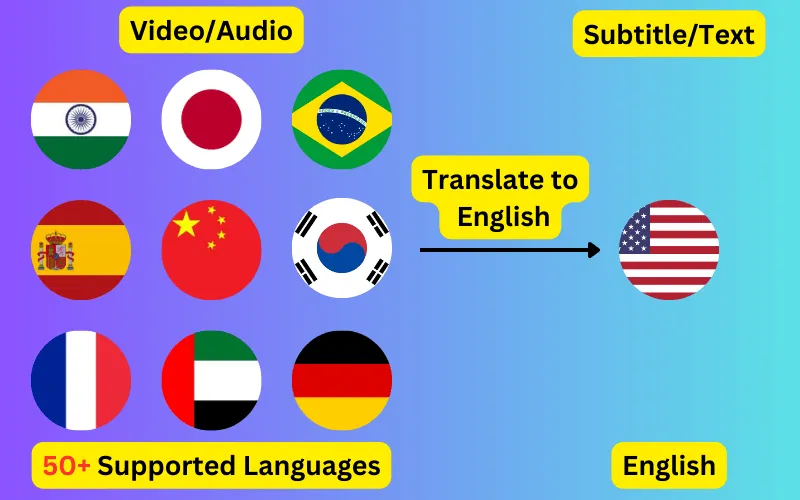
  • Translate audio/video into subtitles or text in any language.
  • 76 languages supported.
  • Add subtitles to your video or export them as SRT/VTT/plain text.
Trusted by 3000+ users.

Free: 3 files a day, up to 60 seconds each

Sign up for 5 a day

Mode:

Transcribe
Translate

Upload a video and get its speech as text. Export it as a flat transcript to read and repurpose, or as a timed subtitle track that drops straight back onto the footage.

Transcript or subtitle track — decide before you export

These are the same job with two different outputs, and the one you want depends on what happens next. A transcript is a document: continuous text, no timings, useful for turning a talk into an article or making an archive searchable. A subtitle track is a file of timed cues that sits alongside the video and can be switched on and off.

Both come out of a single upload, so there is no need to choose in advance. Export the TXT for the writing and the SRT for the player.


The audio is what gets transcribed

The picture is not analysed — speech is read from the video's audio track, which is why a well-shot video with poor sound transcribes worse than a plain screen recording with a good microphone. If the footage was recorded with a separate audio device, transcribing that file directly usually gives a better result than transcribing the camera's own track.

On-screen text, slides and captions already burned into the picture are not picked up, because nothing is read from the image.

Video formats accepted

MP4, M4V, MOV, MKV, WEBM, TS and M2TS, at any size. There is no need to extract the audio first or convert anything — upload the file you already have, and your browser sends up the audio out of it rather than the whole thing. Older containers like AVI, WMV and FLV are not accepted, because that step happens in the browser and the browser cannot open them; converting one to MP4 first is enough.

What people do with the text

  • Publish a subtitle track, so the video is watchable with the sound off.
  • Turn a recorded talk or webinar into a written post without retyping it.
  • Edit by transcript — find the sentence in the text, then cut to it in the timeline.
  • Make a back catalogue searchable, which a video file otherwise is not.
  • Meet accessibility requirements that ask for a text alternative.
ByteDance logoBerkley university logoUniversity of Illinois logoAljazeera logo
Transcribe 76 languages to Subtitles or Plain Text

Transcribe

Transcribe Your Video/Audio Automatically, then add the subtitles to your video or export them as SRT/VTT/text.

76 Languages supported (See List)

Translate

Translate Video/Audio into Subtitles in Any Supported Language, Automatically. Burn them into the video or download them as SRT/VTT/text.

76 Supported Languages (See List)

Translate 76 languages to Subtitles or Plain Text

Supports Noisy Audio

Translate or transcribe audios recorded in a noisy environment with great accuracy.

Multilingual audio

Have video where multiple speak different languages? No problem!

Support for Diverse Accents

Different people from different places speak the same language differently, our AI can work through it seamlessly.

Common questions

Do I need to extract the audio from my video first?

No. Upload the video as it is — the audio track is read from it directly. Extracting it yourself first makes no difference to the result.

Will the subtitles be burned into the video?

No. You get a separate SRT or VTT file, which means viewers can switch it off, you can attach several language tracks to the same video, and the footage itself is never re-encoded.

Is on-screen text included in the transcript?

No. Only speech is transcribed — nothing is read from the picture, so slides, captions and titles already in the frame do not appear in the text.

Can I get the text in a different language from the speech?

Yes, but that is translation rather than transcription. Set the spoken language and a different subtitle language, and the exported file keeps the original timings. Any of the 76 languages can be either side of that.